
Android Low Vision: Reading Mode
Today we'll look at Google's Reading Mode app. This is a free app that makes longer text like articles and emails easier to read. For looking at the text, we can adjust the displays, font, color spacing and more.
And for listening to it, we can adjust the reading, voice and speed. To get started, go to the Google Play Store, search for Reading Mode by Google and it should come right up or check out the resources by scrolling down below the workshop to find a link. Reading mode is already installed on this phone, so let's find out how to set it up so we can access it whenever we need it.
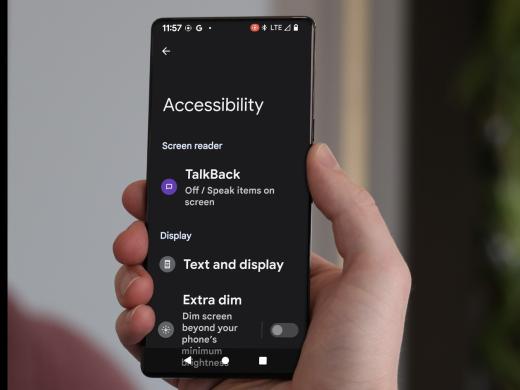
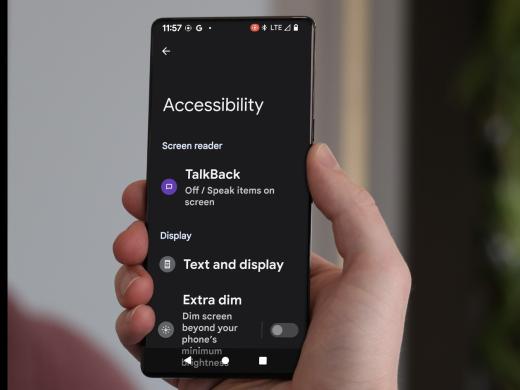
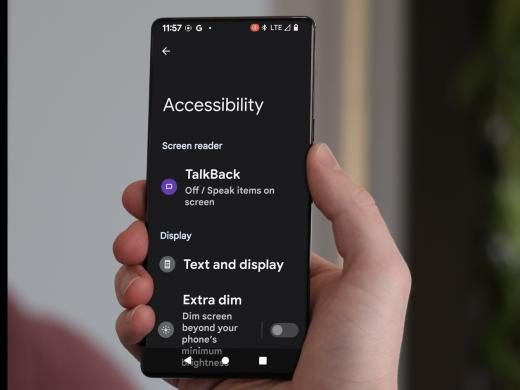
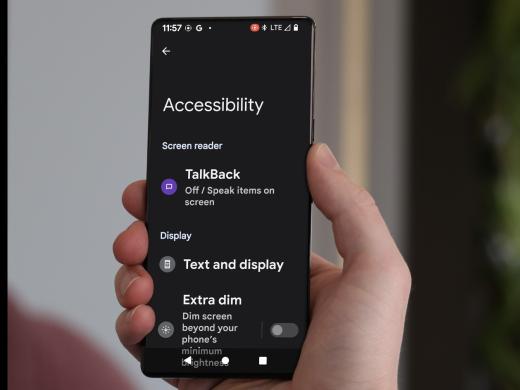
Let's begin by heading over to the settings app, which is right here on our home screen. First we'll touch our settings app to open it, and next we'll scroll down and tap on accessibility to open the accessibility settings.
On this phone, we'll find the reading mode shortcut right here under the downloaded app's heading on some phones, you may need to scroll down a bit to find it.
Now let's tap the toggle button to turn it on. A screen pops up asking us to allow reading mode to have full control of our device. We want to give this feature access to read the text on our screen, so let's scroll down and select Allow. Great. We're almost done.
We now have a screen that lets us choose how we'll access reading mode. For this workshop, we'll select tap accessibility button. Let's tap on the back arrow at the top left corner of the page.
Okay. Now that our shortcut is set up, let's head over to a website to try this cool new tool.
We'll start by going to our home screen. We'll tap our home button in the center of our navigation bar down here at the bottom to get to our home screen. Or if you don't have a navigation bar, just swipe up from the bottom of the screen and now let's tap the Chrome app to open it. Great. We just so happen to have a page already open on this phone and ready to read.
Let's use our shortcut to launch reading mode. We'll head down to our accessibility button in the bottom right corner of the screen. If you've only set up one feature to use the accessibility button, you can simply tap it quickly to bring up reading mode. On this phone, we have two features set up for the accessibility button, reading mode and magnification. So to choose the one we want to use, let's touch and hold the button. Let's go ahead and tap the reading mode button and reading mode opens.
Wow, our pages now displayed against a contrasting background. Without any distracting ads, we can change some settings to make the text even easier to see and we'll check those out in just a bit. For now, let's tap the play button in the bottom center of the screen to hear the content read aloud.
VoiceOver: Top Five Hardy plants that are perfect for beginners. Introduction. Starting a plant journey can feel a bit daunting, especially if you've never had a green thumb before. But don't worry, choosing the right plants can make all the difference and that's where Hardy Plants come in. These tough little survivors are perfect for beginners because they can withstand a bit of neglect and still thrive.
Narrator: We tap the button again to pause. Now let's check out our reading mode screen and explore what's here. At the top left of the screen, we find an estimate of how long it will take to read the article aloud. Next we find a button that looks like a down arrow. We'll use this to close reading mode.
When we're finished. Down in the bottom left corner of the screen, we'll find the settings button, which lets us change how our content looks and sounds. Let's tap the button to open and explore our settings. Now let's select display settings.
Here we can change our text size. Let's do that now by tapping the Capital A with a plus sign a couple of times to increase it. And if we need to decrease the size, we can tap the capital A with a minus sign to do that. Great. We can also change our font style line spacing, bold text color contrast, and to underlining.
Next, let's select audio. Here we can change reading speed and reading voice Below the reading speed heading, we find minus and plus buttons to decrease or increase the reading speed. The number between these two buttons is our current reading speed, and below the reading voice heading, we find a dropdown menu, which lets us choose the voice we want to use to read content aloud. Let's tap to open it and select voice three.
Now let's close settings to go back to the reading mode screen and test out our changes. To do this, we'll tap the hide settings button that looks like a down arrow here in the middle of the screen before we listen to our notice that down in the bottom right corner of the screen, we have a button that lets us quickly adjust text size without opening the settings menu. When we're playing the text aloud, this button changes to let us quickly adjust the reading speed. Let's touch the play button in the bottom center of the screen to begin reading our page aloud
VoiceOver: Why choosing Hardy Plants Matters.
Narrator: Great. And now with the volume down, our content will continue reading as we explore a couple more buttons. On the screen to the left of the Play Pause button is the skip back button, and to the right is the skip forward button. We can select the skip forward button to skip to the next sentence or the skip back button to go to the previous sentence to go back to the previous paragraph or skip to the next paragraph, touch and hold the buttons.
Once we finished reading the article, let's find the reading mode button that looks like a down arrow at the top of the screen. We'll tap the button to close reading mode and now our page looks just as it did before. That's quite a difference, isn't it?
Reading mode is a great way to make longer text, like emails and articles easier to read. Thanks for joining me today. Until next time.
Android: Low Vision Features Series
- Video · 8 minutes
- Video · 4 minutes
- Video · 5 minutes
- Video · 10 minutes
Explore
-
A Review of BlindShell, Mobile Phone for the Visually Impaired
Audio · 23 minutes
-
A family member has vision loss
Resource guide
-
The Crochet Life: Tips for Crocheting After Vision Loss
Article · 2 minutes
-
Resource Roundtable
Discussion
- Explore more
Members also liked
- Video · 6 minutes
- Video · 8 minutes

- Video · 6 minutes
- Video · 3 minutes

Join the Hadley Community
Hadley's resources are always available to you. Create a no-cost Hadley account to go further:
-
Pick up where you left off Everything you start is automatically saved across Hadley.
-
Personalized recommendations We'll suggest resources based on your interests.
-
Join live discussions Live and lively discussions on technology, cooking, and more, all geared toward the community of people living with vision loss.
-
Find peer support Connect with people who understand what you're going through.