
iPhone/iPad VoiceOver: 4 Finger Gestures
Douglas: Hello, my name is Douglas Walker. Today, we'll be taking a look at our four finger gestures. Now, our four finger gestures will allow us to do some really cool things, like instantly jump to the top in the bottom of our screen or to quickly move between our most recently used apps. So, let's jump right in and check out our four finger gestures.
Okay, the first four finger gesture we'll check out today is our four finger single tap. Now, our four finger single tap will quickly move us to the first or the last item on our screen depending upon where we tap on our screen. Yeah, this means that if we do our four finger single tap near the top of our screen that our voiceover focus will move to the very first item on our screen.
And if we four finger single tap near the bottom of our screen, our focus will move to the very last item on our screen. So let's go ahead and give this a try. We'll just tap with four fingers near the top of our home screen here.
Voiceover: Notes.
Douglas: Great. And we are now on our Notes app here in the very top left hand corner of our screen. And if we four finger single tap near the bottom of our screen and we'll do just that.
Voiceover: Doc music.
Douglas: Yeah, we find ourself on our music app right here in the bottom right hand corner of our screen. And that can be a huge time saver instead of having to swipe through everything on our screen. Okay, our next four finger gesture is our four finger double tap. Yeah, our four finger double tap actually opens our help mode and it gives us a really great place where we can practice all of our voiceover gestures. So, let's just go ahead and tap our screen two times with four fingers and check it all out.
Voiceover: Starting help. To stop help, perform a four finger double tap or two finger scrub or press escape on the the keyboard.
Douglas: Okay, our help mode has opened and now we can practice all of our gestures. So, how about we go ahead and practice a couple right here? Let's do a two finger double tap and see what happens.
Voiceover: Two finger double tap. Magic tap.
Douglas: Yeah, of course, that's our magic tap there. So, we'll do a three finger triple tap. How about that? We'll do that.
Voiceover: Three finger triple tap, toggle screen curtain.
Douglas: Yeah, and there you go. I tell you, I really do love our help mode. All right, so when we first started our help mode, voiceover gave us some hints for how we actually exit our help mode. We were told that we could four finger double tap again, we could perform a scrub gesture, or if we're using a Bluetooth keyboard we can just press our escape key. So how about we just four finger double tap again here and we'll just tap our screen twice with four fingers.
Voiceover: Four finger double tap. Start help, stopping help.
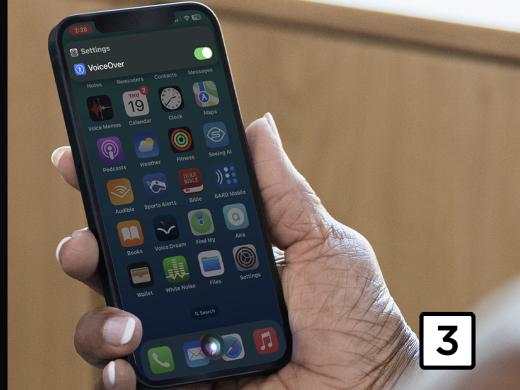
Douglas: Yeah, our help mode is stopped and we can now use our device as we normally would. All right, our next four finger gesture is our four finger triple tap. Yeah, tapping our screen three times with four fingers opens what Apple calls Detection Mode. Now we won't have time in today's workshop to explore our Detection Mode, but no worries, because we just so happen to have a resource just below this workshop that discusses how to use Detection Mode to locate things around us like text on signs and documents. Detection Mode can tell us if there are people around us and exactly how far away they might be. We can even be told where doors are in a room or on a building, which is super cool. So, if you're interested in learning more about Detection Mode, you're really gonna wanna check out that resource. Our next four finger gesture is our four finger quadruple tap. Now, if we've ever had to go hunting for our voiceover settings, we know it takes quite a few steps to get there. Well, our four finger quadruple tap can save us a lot of time. All we have to do is quickly tap our screen four times with four fingers, and our voiceover settings will all instantly open, right? That is super fantastic. So, let's go ahead and do it. We'll just tap our screen four times with four fingers.
Voiceover: Settings, accessibility, back button.
Douglas: Great, our voiceover settings are all open and we can just right and left swipe to find the voiceover setting we need. Yeah, you gotta love that, right? Okay, our next two four finger gestures will be our four finger right and left swipe. Now these two gestures are really cool because they allow us to quickly move between our most recently opened apps. Okay, let's go ahead and check these two out. Now, we already have our settings app open here, so if we four finger right swipe, we'll move to our previously opened app. So we'll go ahead and just four finger right swipe.
Voiceover: Weather, Wilmington Island, 74 degrees.
Douglas: Great, and here we are on our Weather app, which is actually the app that we had opened before, of course, we opened our settings app. And if we were to continue to four finger right swipe, we'd be placed on the app that we had open before we opened our weather app here. And that really is great. But how about we just four finger left swipe back to our voiceover settings and our settings app here. And we'll just four finger left swipe.
Voiceover: Settings, accessibility, back button.
- All right. And here we are back on our settings app again and, of course, we're in our voiceover settings. You know, our four finger right and left swipe is a really handy gesture if maybe we're wanting to copy and paste something between two different apps. Hey, there you go. That pretty much covers all of our four finger gestures. You know, it really is fantastic that our four finger gestures give us some really great ways for quickly moving through our device. As well as a safe place for practicing all of our voiceover gestures. Again, my name is Douglas Walker. Take care, and I'll see you next time.
-
Handouts
4 Finger Quick-Start Guide (PDF)
This quick-start guide helps you use 4-finger gestures to navigate your screen.
Learn how to use the Detection Mode feature in the Magnifier app on your iPhone or iPad.
Listen with VoiceOver Series
- Video · 10 minutes

- Video · 3 minutes

- Video · 12 minutes

- Video · 10 minutes
Explore
-
My Heart is Not Blind
Audio · 22 minutes
-
I was just diagnosed
Resource guide
-
Practical Tips for Living with Vision Loss After a Stroke
Article · 7 minutes
-
Embracing Braille
Discussion
- Explore more
Members also liked
- Video · 5 minutes

Join the Hadley Community
Hadley's resources are always available to you. Create a no-cost Hadley account to go further:
-
Pick up where you left off Everything you start is automatically saved across Hadley.
-
Personalized recommendations We'll suggest resources based on your interests.
-
Join live discussions Live and lively discussions on technology, cooking, and more, all geared toward the community of people living with vision loss.
-
Find peer support Connect with people who understand what you're going through.