
iPhone/iPad VoiceOver: Notification Center
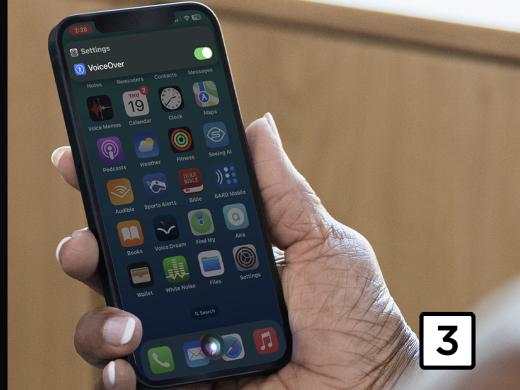
Douglas: Hello, my name is Douglas Walker. We've all heard our device dinging and pinging. Well, most likely what we're hearing are all of our notifications. Well, today we're gonna be exploring our notifications center. In our notification center, we'll find notifications from our recent emails, our recent text messages, all of our missed calls and any other app notifications that we might have received which is really cool. So let's go ahead and check it all out.
Now if we have an iPhone without a home button, we'll need to use our single finger drag down gesture. And once we feel our second vibration and here our little audio cue voiceover will announce, lift for notifications, and we'll simply lift our finger. Otherwise, if we have a home button, we'll touch and our status bar and then we'll perform our three finger swipe down. So all right, let's go ahead and just open our notifications.
Voiceover: Lift for notification center. Notification center, 2:33 p.m.
Douglas: Great, our notification center is open and we've been placed on our current time in the top center of our screen here. Now we've been presented with a list of all of our notifications. Yeah, our notifications are arranged for us in the order in which they were received. And if they happen to be notifications from the same apps, they're also grouped together. Now to move through all of our notifications, all we need to do is just begin right swiping. So how about we check out how that works. And we'll just right swipe here.
Voiceover: Notification center heading.
Douglas: Yeah, here's our notification center heading so we know for sure that we're in the right place. Right? Yeah, so we'll just right swipe from here.
Voiceover: Clear notification center button.
Douglas: Great, here's our clear button. And this is really handy. Our clear button gives us the ability to clear all of our notifications. Now we can also clear individual notifications and we'll check out how to do that in just a bit. However, it's nice to be able to clear our entire notifications list from here if we like. And of course, we just double taped to clear them all off but we don't want to do that because we want to check them out first. So we'll just right swipe.
Voiceover: Amazon grouped three hours ago. Amazon, hi Doug, your Amazon package was delivered. Button, activate to expand. Swipe up or down to select a custom action. Then double tap to activate.
Douglas: Okay and here's our first notification and this is an Amazon notification, which was really cool. Now, voiceover announced that we have some actions available here. We also heard voiceover say that this is a grouped notification and we were also told that we could just activate or double tap to expand those notifications. So if we double tap, all of our Amazon notifications will be visible and we could just begin right swiping through them. Now we'll do that in just a bit. But first, how about we check out our actions?
All right. All we need to do to move through our actions is to swipe up or swipe down on our screen. So let's go ahead and just swipe down through our actions for now and we'll swipe down.
Voiceover: Options.
Douglas: Yeah, voiceover announced options. Now, if we were to double tap on our option action here, we'd be given a popup menu and we'd be given some tools or some options for controlling how our notification here is delivered. For instance, we're given the option to mute for an hour. We could mute it for the day. We could view all of our notification settings or we could even turn off our notifications if we'd like. And it's really cool that we can do all that from right here within our notifications, which is a real time saver for sure. Okay, we'll just swipe down again.
Voiceover: More.
Douglas: Now voiceover announced more. And this is so handy because if we were to double tap here, we'd be given additional options that are specific to just this app or this notification. Yeah, it's so great that we have so much control over our notifications right here. Okay, so let's swipe down again.
Voiceover: Clear all.
Douglas: Yeah and here's our clear all action. And if probably guess that if we were to double tap now, all of our Amazon notifications would be removed from our notifications list here, and that's a super quick way to keep our list all cleaned up. Okay, when we swipe down again, we'll be back to our default action. So let's just swipe down.
Voiceover: Activate default.
Douglas: Yeah and here we are back on activate. Remember, we were told that our Amazon notifications are all grouped together. So, you know, how about we go ahead and just double tap to show or expand all these Amazon notifications. We just double tap.
Voiceover: Screen, Amazon grouped three hours ago. Amazon, hi Doug, your Amazon package was delivered, button.
Douglas: Great, our Amazon notifications are now all visible for us. And like we said earlier, we could just right swipe to check them all out. And if we happen to find one we want or need to open, we could just double tap and our Amazon app would open. Yeah, so that's pretty cool. Okay, we do have a couple of more things to quickly check out and we can left swipe to them from here. So we just left swipe.
Voiceover: Clear button.
Douglas: Yeah and here's our clear button. And double tapping here would clear our list of Amazon notifications and it's pretty cool. So we do have one more button here to check out. So we'll just left swipe back to that.
Voiceover: Confirm show less button.
Douglas: Okay, so here's our confirm show less button and double tapping our show less button will collapse all of our expanded Amazon notifications and they'd all be grouped back together again. Okay, so there you go. That pretty much covers how our notification center all works. You know, it really is super handy that we've been given the ability to view, react to and even manage all of our notifications from right within our notification center. Again, my name is Douglas Walker. Take care and I'll see you next time.
-
Handouts
Notification Center Quick-Start Guide (PDF)
This quick-start guide helps you use your Notification Center to find your most recent app notifications.
Listen with VoiceOver Series
- Video · 7 minutes

- Video · 3 minutes

- Video · 12 minutes

- Video · 10 minutes
Explore
-
"What can I do?"
Audio · 5 minutes
-
I can’t drive anymore. Now What?
Resource guide
-
Diagnosed with Vision Loss? Find Help Here
Article · 5 minutes
-
Recreation Chat
Discussion
- Explore more
Members also liked
- Video · 5 minutes
Join the Hadley Community
Hadley's resources are always available to you. Create a no-cost Hadley account to go further:
-
Pick up where you left off Everything you start is automatically saved across Hadley.
-
Personalized recommendations We'll suggest resources based on your interests.
-
Join live discussions Live and lively discussions on technology, cooking, and more, all geared toward the community of people living with vision loss.
-
Find peer support Connect with people who understand what you're going through.