
Outlook Screen Reader: Email Send
Ricky: Hello, my name is Ricky Enger and today, we'll get a quick intro to Microsoft Outlook. We'll actually send an email to someone by the time we're done here, how cool is that? We're using NVDA as our screen reader but the concepts we learn here will be pretty similar no matter which screen reader we're using. If you want to be ready to send an email, you first need to make sure that your email account is set up in Microsoft Outlook. We will be able to walk through that part of the process together. But once that's done, you'll be ready for what we're doing today.
We'll open Outlook from our desktop today and we'll also be using modifier keys like the Alt key and the Insert key to accomplish some of our tasks. If these things aren't completely familiar to you, we've got some great resources that cover these topics. Specifically, check out the Navigating Our Desktop workshop. It's a part of the Using a Screen Reader with Microsoft Word series and it covers some really important things that you can use in a lot of different programs going forward.
Okay, so before we dive into sending that email which is the whole reason why we're here, let's talk about a couple of terms we'll be using today and throughout the rest of this series. I think a good place to start is with the Inbox, which is the first thing that pops up when we open Outlook. So what is that exactly? Well, you probably won't be too surprised to know that it's pretty much what it sounds like. It's basically the electronic equivalent of our physical mailbox and it's where we'll see new emails that people send us.
So, what else besides the inbox do we need to know about if we're going to send an email? Well, just like when we send physical mail, we have to know where it's supposed to go. So our email address, just like a physical address, follows an actual format. That's name@domain name. So as an example, my email address is [email protected]. It's my last name followed by the @ sign followed by where I'm located, which in this case is hadley.edu. That end part of the address after the @ sign is called the domain name and it gives us some pretty useful information. In my case, the .edu address tells us that this is an educational organization. .gov is for government agencies, .com stands for a commercial website and those are just a few examples.
Now, some email addresses can be really creative or nonsensical at times but the address is always going to be in that format. [email protected]. All right, so with all that out of the way, let's go ahead and open Outlook so we can finally get to the task at hand, sending an email. Let's move to the desktop with the Windows key plus the letter D.
Screen Reader: Folder view list, Google Chrome 506.
Ricky: Instance, the desktop shortcut that Outlook usually creates when it's installed is just called Outlook. We'll press O to jump to the first item beginning with that letter.
Screen Reader: Outlook 360.
Ricky: What do you know? On this computer, we land on Outlook. If we don't immediately land on Outlook, we can just keep pressing the letter O until we do. So now that we're focused on the Outlook shortcut, let's press Enter here to open it.
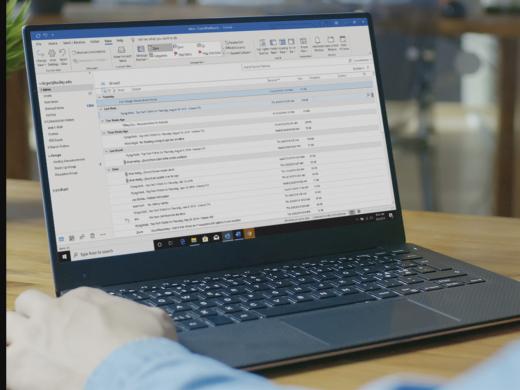
Screen Reader: Opening Outlook. Inbox [email protected] Outlook, table, view table.
Ricky: And just like we talked about in the beginning, the inbox is what pops up when we open the program. But we don't want to read email right now. We want to send one, so we'll press Ctrl and N for new message. That's kind of easy to remember if we just think how the N stands for new and when we press that--
Screen Reader: Untitled message. HTML, dialog, to edit, blank.
Ricky: Wow, The screen reader just said a whole bunch of stuff, what does all that mean? So just quickly, untitled message is telling us we don't have a subject for the email yet. HTML is the format that the email is in. Dialogue means we're in a place where we'll interact with a few things and provide some information and finally, to edit means we're in an edit field called To.
It's okay if some of that still doesn't make sense. The really important bit for now is the last couple words here, to edit. This tells us we're in an edit field, meaning we're in a place where we can type information and this field is called To. So what might we enter here? Yeah, we'll enter the email address that we're sending this email to. So let's type [email protected].
Screen Reader: Learn tech, Hadley, EDU.
Ricky: Okay, cool. So we just entered where we want our message to go. Now what? Well remember earlier when we heard the word dialogue and we talked about how we'd be interacting with a few things inside that dialogue? It's time to do that now. So in order to move to the different items in this dialog, we'll press the Tab key to move forward.
Screen Reader: CC, edit, flag.
Ricky: So this next edit field we land in when we press the Tab key is called Cc and it's an edit box just like the To field. Cc means carbon copy and this lets us send our email message to more than one person at a time. So if we want to say the same thing to a couple people, we can just type in that second address here and this will send the message to both people at once. We don't have a need to do that this time, so we'll keep moving through this dialog with the Tab key.
Screen Reader: Subject, edit, alt plus U, blank.
Ricky: Now we're in an edit field called Subject and we got a little bit of extra information. Alt plus U, what does that mean? It means that if we want to jump directly into that subject field without having to press the Tab key and move around the dialog, we can just press the Alt key and the letter U as in uniform and it pops us right in there. That's called a shortcut key.
So whenever someone talks about shortcut keys, they're just talking about these quick key combinations that will do a specific thing. Now the subject field is used to give a general idea of what the message is about. It's shown before the person ever opens the message. So whatever we say here gives that person an idea of what's coming next. Let's type "My first email" in this subject field.
Screen Reader: My first email.
Ricky: And now we're ready to Tab again to see what's next.
Screen Reader: Message edit, multi-line, blank.
Ricky: Okay, now we hear "message edit multi-line." So this must be where we type our actual message. Hmm, what should we say? Hello.
Screen Reader: Hello.
Ricky: I'm--
Screen Reader: I am--
Ricky: Interested.
Screen Reader: Interested.
Ricky: In learning.
Screen Reader: In learning.
Ricky: More about.
Screen Reader: More about.
Ricky: A talking.
Screen Reader: A talking.
Ricky: Tablet computer.
Screen Reader: Tablet computer.
Ricky: You know what? Our subject line could maybe be a little better. We used "My first email" but we're actually asking a question about tablets. So let's just go back and change that. We can either press Alt plus U to move right into the subject line or we can move backwards in this dialog until we find it again. Since we use tab to move forward through the dialog, we'll use Shift plus Tab to move back.
Screen Reader: My first email.
Ricky: And here we are in the subject field again and the cursor is at the end of what we typed before. We can press the Backspace key to delete character by character.
Screen Reader: Space, L-I-A-M.
Ricky: We can use the left and right arrow keys to move through what's here already.
Screen Reader: Space, D, space, E, blank.
Ricky: Or since we want to just delete this whole thing, we'll press Ctrl plus A to select all. A for all.
Screen Reader: My first, E selected.
Ricky: And then press the Delete key to get rid of all of it.
Screen Reader: Blank.
Ricky: There we go. If we move left and right with our arrow keys.
Screen Reader: Blank, blank.
Ricky: We can tell this field is now blank. So, we'll type "Talking tablets."
Screen Reader: Talking tablets.
Ricky: For our subject and then move forward again with the Tab key to land in the message field.
Screen Reader: Message added, multi-line.
Ricky: Okay. We're right back where we stopped typing before. So let's go ahead and add a line, "Thanks for--"
Screen Reader: Thanks for--
Ricky: Any information.
Screen Reader: Any information.
Ricky: You can give me.
Screen Reader: You can give me.
Ricky: Now a signature.
Screen Reader: Ricky Enger.
Ricky: And we're ready to send. Hmm, maybe S for send, that would make sense. And yes, that's exactly what it is. So we'll hold down the Alt key and press S. So Alt plus S for send.
Screen Reader: Inbox [email protected] Outlook.
Ricky: And there it goes. Now we just have to wait for someone to respond. That or we could just start sending lots of emails to everyone we know. Practice makes perfect, right? I'm Ricky Enger and I'm glad you could spend a little time with me learning how to send email in Microsoft Outlook.
-
Handouts
Email: Send Quick-Start Guide (PDF)
This quick-start guide helps you to send emails.
This handout lists keyboard shortcuts so you have an alternative way to do something that you'd typically do with a mouse.
Outlook: Screen Reader Series
- Video · 7 minutes
- Video · 7 minutes
- Video · 4 minutes
- Video · 6 minutes
Explore
-
Emotional Adjustment to Vision Loss: Twin Perspectives
Audio · 28 minutes
-
I can’t drive anymore
Resource guide
-
Volunteering After Vision Loss
Article · 4 minutes
-
Recreation Chat
Discussion
- Explore more
Members also liked
- Video · 6 minutes
- Video · 5 minutes

- Video · 5 minutes

- Video · 3 minutes

Join the Hadley Community
Hadley's resources are always available to you. Create a no-cost Hadley account to go further:
-
Pick up where you left off Everything you start is automatically saved across Hadley.
-
Personalized recommendations We'll suggest resources based on your interests.
-
Join live discussions Live and lively discussions on technology, cooking, and more, all geared toward the community of people living with vision loss.
-
Find peer support Connect with people who understand what you're going through.