
Outlook Screen Reader: Email Open, Close, Delete
Ricky: Hello, my name is Ricky Enger, and today we'll begin working with messages in Microsoft Outlook. We'll open and read a message, learn a couple of ways to close a message, and we'll delete messages we no longer need. We're using NVDA as our screen reader, but the concepts we learn here will be pretty similar no matter which screen reader we're using.
Anticipation, it's that thing we feel when we've ordered something and we're waiting for it to ship, or when we're sitting by the phone hoping for that call giving us good news, or when we're listening for that sound from Outlook signifying that a new message has arrived. Yeah, that sound. What is it? What did we get? Let's open it. Feels like Christmas morning, doesn't it? Okay, maybe not, but it's still kind of exciting when we receive a message we've been waiting for, like this one from Hadley with information about talking tablets.
Screen Reader: Unread from Learn Tech, subject Re: talking tablets.
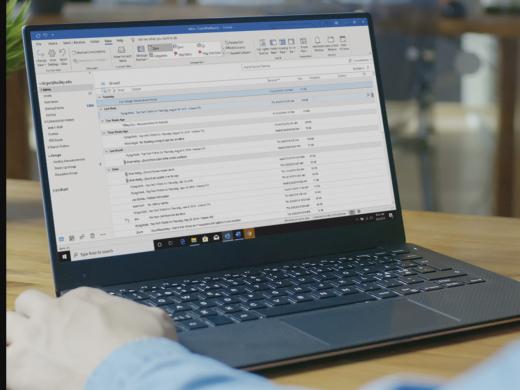
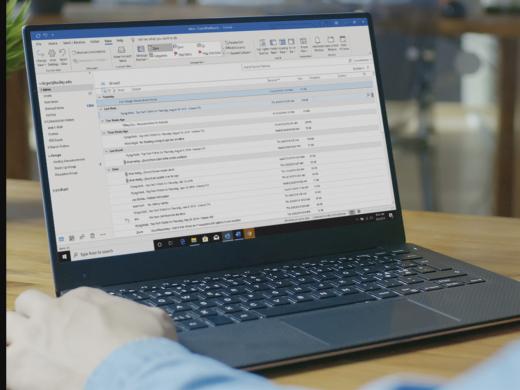
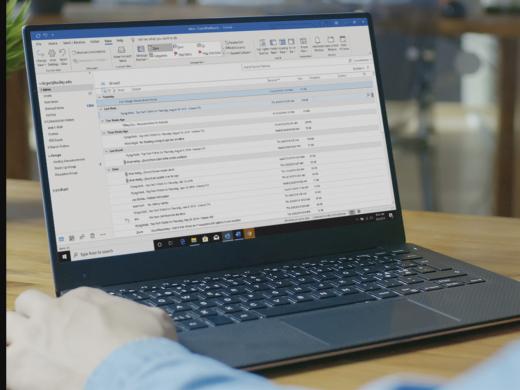
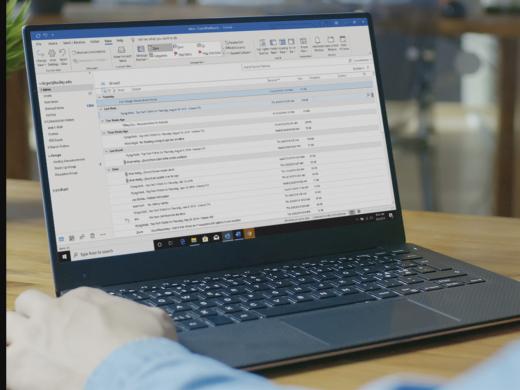
Ricky: We've opened Outlook and we're in our inbox, and we've used our up and down arrow keys to move through a list of messages. Now, we're focused on the one we wanna open, so let's open it. All we have to do here is press enter and we're in the message, which begins reading as soon as we open it.
Screen Reader: Re: talking tablets message, HTML, dialogue. Message document multi line. Hi there.
Ricky: That's pretty cool, except that the automatic reading eventually does stop, so if the computer doesn't read the whole message for us automatically, we should know how to navigate through it. Let's begin by moving to the top of the message with Ctrl + Home.
Screen Reader: Hi there.
Ricky: This is a nifty little keyboard shortcut that works in all sorts of places, such as webpages, Word documents and of course Outlook email messages. It moves us to the top of the document. Now that we're at the beginning, we can read this message in a couple of different ways. If we just wanna hear the whole thing while we sit back and listen, we'll press the NVDA key and the down arrow key.
But wait, what's the NVDA key? It is the insert key on the keyboard. Or if we enable it in NVDA's keyboard settings, we can also use the caps lock key. Having said that, the insert key will always work as a modifier, so it's good to remember that even if we do configure the caps lock key to work as well. So NVDA plus down arrow will start reading from wherever we are in the document, which in this case is at the very top.
Screen Reader: Hi there. There are four tablets you might like to learn about. There is the iPad from Apple, the Surface from Microsoft.
Ricky: But sometimes there's just too much information to take in all at once, and it might be easier to read line by line. So if we wanna take this a little more slowly you can just move through this message by pressing our down arrow to move down line by line.
Screen Reader: The Kindle Fire from Amazon, and lots of tablets running Android.
Ricky: If we miss something, we can just move back up a line to hear it again.
Screen Reader: There's the iPad from Apple, the Surface from Microsoft.
Ricky: We can even move character by character with left and right arrow keys, or word by word using our control key with left and right arrow keys. Control plus right arrow to move forward by word.
Screen Reader: The iPad from Apple.
Ricky: And control plus left arrow to move back by word.
Screen Reader: From iPad the.
Ricky: So that gives us a couple of ways to read our message. Okay, so whether we use NVDA plus down arrow to read the whole message automatically, or we use our arrow keys to move through it, we've read the whole message and now we're ready to see what else is in our inbox. To do that, it's easiest to close this message since we're done with it for now. Just like opening the message, closing it is actually really easy. We just press the escape key on our keyboard, which makes sense if we just think I'm ready to escape this message. There's another way to do this as well, and this too is one of those keystrokes that's useful in a lot of different programs. We can press the alt key plus F4. That's function key four, which on most keyboards is on the same row as the escape key. That keystroke will close the window we currently have open.
Screen Reader: Inbox [email protected] Outlook. Table view table.
Ricky: Once we close our message using escape or Alt F4, we'll be back inside whichever window had focus previously. That's our inbox this time. So we closed our message and we're back in the inbox, which has some good stuff and some that's just not worth bothering with, right? I mean maybe we've got messages promising us money if we just provide our bank details. Much as we might want that to be true, we can safely say that's junk and we don't want it to clutter up our inbox. Also, maybe we've got messages that we've read that were legitimate but we just don't wanna keep anymore.
Screen Reader: From [email protected], subject how I like my coffee.
Ricky: This message with someone's recipe for how they like their coffee. One cream and two sugars apparently. We probably don't need that anymore, so how do we get rid of some of this clutter and throw these messages in the trash? Well, we do have a delete key on our keyboard, so it makes sense that we'll use that lovely little key to delete our message. We just need to be in our inbox and focused on the message we wanna delete. We can press the delete key.
Screen Reader: From LearnTech, subject re: talking tablets.
Ricky: And it does exactly what it should do. It deletes the message and moves focus to the next item in our email list. This key doesn't work while our message is actually open. For that we'll use a different key stroke, which is Ctrl + D. D for delete. But for those times when the junk mail generator has been really busy and we can tell right away by the subject line that we wanna get rid of the message without even bothering to open it, we can just press our delete key and off it goes to the trash. There, we deleted a couple of messages and the inbox feels tidier already. I'm Ricky Enger and I'm glad you could spend a little time with me today learning how to work with messages in Microsoft Outlook.
-
Handouts
Email: Open, Close, Delete Quick-Start Guide (PDF)
This quick-start guide helps you to open, close, and delete emails.
This handout lists keyboard shortcuts so you have an alternative way to do something that you'd typically do with a mouse.
Outlook: Screen Reader Series
- Video · 4 minutes
- Video · 10 minutes
- Video · 7 minutes
- Video · 6 minutes
Explore
-
"The secret was killing me"
Audio · 5 minutes
-
I can’t drive anymore
Resource guide
-
Shopping Your Way: Grocery Options When You Have Vision Loss
Article · 3 minutes
-
Tech It Out
Discussion
- Explore more
Members also liked
- Video · 6 minutes
- Video · 5 minutes
- Video · 4 minutes
- Video · 6 minutes
Join the Hadley Community
Hadley's resources are always available to you. Create a no-cost Hadley account to go further:
-
Pick up where you left off Everything you start is automatically saved across Hadley.
-
Personalized recommendations We'll suggest resources based on your interests.
-
Join live discussions Live and lively discussions on technology, cooking, and more, all geared toward the community of people living with vision loss.
-
Find peer support Connect with people who understand what you're going through.