
Outlook Screen Reader: Email Reply All
Ricky: Hello, my name is Ricky Enger and today we'll discover how to reply to more than one person in an email. We are using NBDA as our screen reader, but the concepts we learn here will be pretty similar, no matter which screen reader we're using. Mm, banana bread. Oh, right we're talking about emails, so how could banana bread possibly be relevant? Well, honestly banana bread is always relevant but in this case, it's because a recipe just landed in our inbox. So let's open it with the Enter key.
Screen Reader: Banana bread recipe message HTML. Dialog, message document multi-line. Here's that delicious recipe I promised you all, passed down from my great grandmother. Whoever makes this first should reply to everybody and let us know how it turns out.
Ricky: So is this kind of a race to see who can finish baking first? Well if it is, we should know who the competition is right? So how do we find out who else got this recipe? For the answer to that, we'll revisit a concept we talked about in another workshop in the series, "Sending an Email." It's the concept of moving through a dialogue with Tab and Shift plus Tab.
So here we are in our message. Which direction should we go? Well if we think about when we send a message, we start with the To field and put in an email address, then we Tab to the CC field, then the Subject field, and then the message itself. Maybe emails we received are like that too. Let's find out by pressing Shift plus Tab to move backward from the message body.
Screen Reader: Sent, edit, read only. Mon 3/16/2020 10:10 AM.
Ricky: Ah, well there's an interesting bit of information. We hear the date when our message was received. Great, let's keep going backwards. We'll press Shift plus Tab.
Screen Reader: CC, Edit, Read Only, Tanya T. Tester, Eugene B, Example, Jane D. Demo, Kitty Schwartz, [email protected].
Ricky: And there's the CC field, which is used to send a copy of the message to more than one person. Looks like there are lots of names in here, so the competition is fierce. If we want, we can move through each of these names by pressing the right arrow key to move forward.
Screen Reader: Semi, space, Eugene B. Example, Semi, Space, Jane D. Demo, Semi, Space, Kitty Schwartz, [email protected], Semi, Space, [email protected].
Ricky: And pressing the left arrow key to move back.
Screen Reader: Space, Semi, Kitty Schwartz, [email protected].
Ricky: Now this is interesting, some of these speak just a name, and some of these speak just an email address without a name. What's that all about? Well, for people we've corresponded with before, Outlook kind of makes a record of that and it can show us the person's name. After all, we don't always memorize email addresses, but we will recognize a name.
For people that we haven't corresponded with yet, Outlook doesn't know who they are, so it can't tell us their name. It does the next best thing and displays the email address, so at least we have that bit of information. Lots of names and addresses are in here, but one is missing, our own. If we move back one more field with Shift plus Tab we'll find our name in the To field.
Screen Reader: To edit, read only, Ricky Enger.
Ricky: It's also possible for a sender to put all these names in the To field instead of even using CC. So let's keep that in mind to check both these fields so we're sure who's receiving this message. Okay, we know who we're baking with now, so let's move forward again until we're in our message. We'll use our Tab key until we're back in the message.
Screen Reader: CC, Edit, Read Only, Tonya T. Tester. Message document, multi line.
Ricky: We haven't made this banana bread yet, but we can still reply to everyone. Maybe we can distract them so we can get a head start. So let's reply here. Now when we wanna just reply to the person who sent the message, we just Control plus R. But if we want to reply to everyone, we'll add a Shift key to that combination. So Control plus Shift plus R to reply to everyone.
Screen Reader: Re, Banana Bread Recipe message, HTML, dialogue, message edit, multi line, blank.
Ricky: When we do that, we're in the message field and we're ready to start typing. The original message appears below what we type, just as when we replied to one person. Okay, so let's send everyone something to think about.
Screen Reader: This recipe says that nuts are optional, but are they really? Discuss!
Ricky: Alt plus S to send.
Screen Reader: Banana bread recipe message, HTML, dialogue.
Ricky: And off that goes to everyone's inbox. People tend to have pretty strong opinions on this issue, so while they're all using the Reply All feature to share their thoughts, we can move on to something else. Like making this recipe before anyone else does. I'm Ricky Enger, and I'm glad you could spend a little time with me today learning how to Reply to All in Microsoft Outlook.
-
Handouts
Email: Reply All Quick-Start Guide (PDF)
This quick-start guide helps you to reply to multiple recipients.
This handout lists keyboard shortcuts so you have an alternative way to do something that you'd typically do with a mouse.
Outlook: Screen Reader Series
- Video · 5 minutes
- Video · 10 minutes
- Video · 7 minutes
- Video · 7 minutes
Explore
-
"This can be a lonely business"
Audio · 5 minutes
-
I'm feeling overwhelmed
Resource guide
-
5 Free Apps to Help After Vision Loss
Article · 5 minutes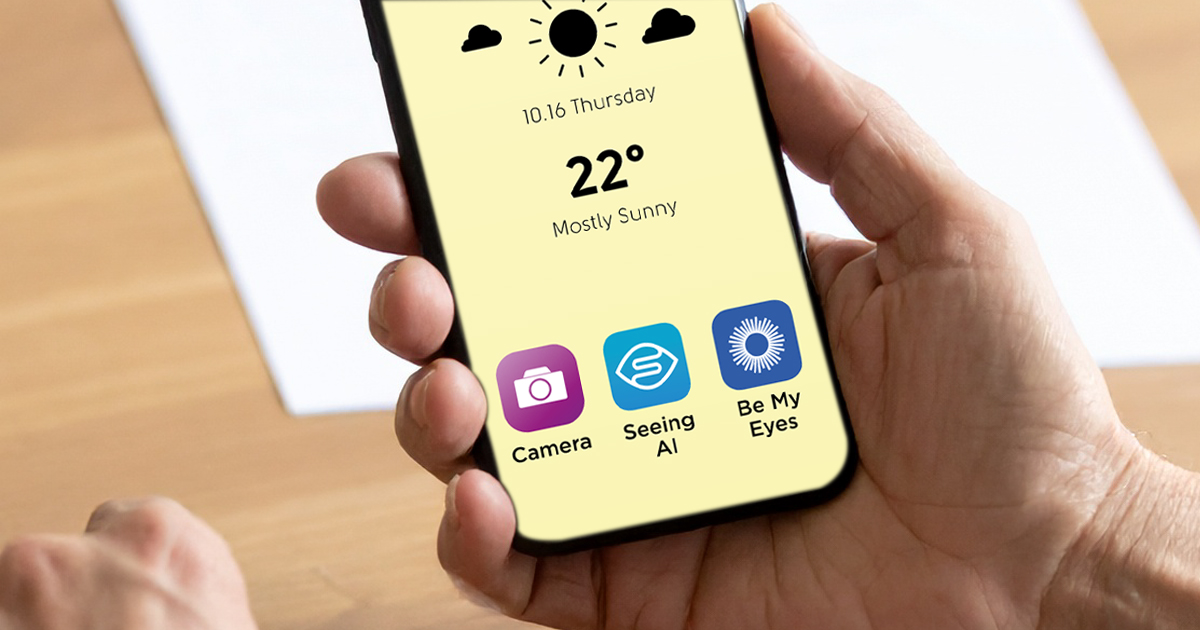
-
Embracing Braille
Discussion
- Explore more
Members also liked
- Video · 6 minutes
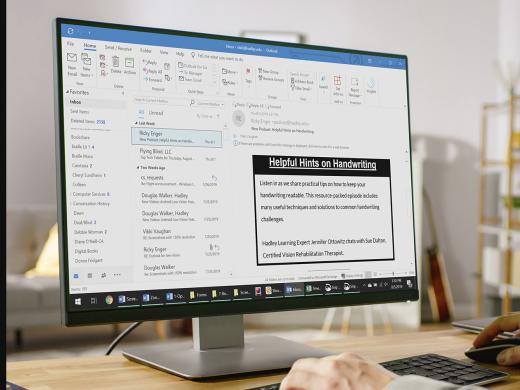
- Video · 5 minutes
- Video · 4 minutes
- Video · 6 minutes
Join the Hadley Community
Hadley's resources are always available to you. Create a no-cost Hadley account to go further:
-
Pick up where you left off Everything you start is automatically saved across Hadley.
-
Personalized recommendations We'll suggest resources based on your interests.
-
Join live discussions Live and lively discussions on technology, cooking, and more, all geared toward the community of people living with vision loss.
-
Find peer support Connect with people who understand what you're going through.