
Outlook Screen Reader: Email Reply
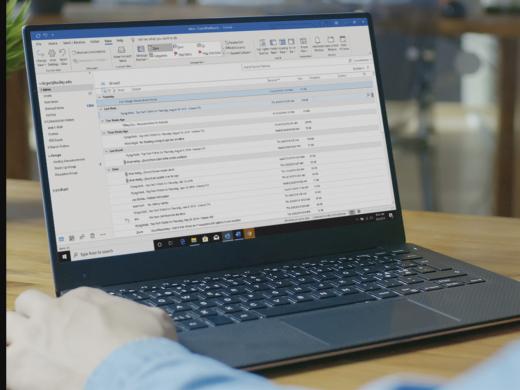
Ricky: Hello. My name is Ricky Enger, and today we'll reply to a message in Microsoft Outlook. We are using NVDA as our screen reader, but the concepts we learn here will be pretty similar, no matter which screen reader we're using. Email is kind of like a game, you know? It's like when we toss the ball back and forth and then the ball always bounces off my head for some reason, and then.
Okay, wait, no, not exactly like that. But there is this same concept of passing something back and forth. We send an email out, we get a lovely one back, and then it's our turn to reply. So how exactly do we do that? It's actually really easy. In fact, the hardest part of this whole exercise is figuring out what we want to say. So, let's find the message we wanna reply to by using our arrow keys to move through the list of messages.
Screen Reader: From Learn Tech, subject RE: Talking Tablets.
Ricky: And then we'll press Enter on the one we want.
Screen Reader: RE: Talking Tablets message. HTML, dialogue, message document multi-line.
Ricky: Hadley was so cool, sending us great information about talking tablet computers. Let's go ahead and send them a nice note back. Now that we have our message open, all we need to do is press Control+R, which is our handy little shortcut for replying. Outlook makes it really simple to remember that, since it's just R for reply. Now, when we do that, let's check out what happens here.
Screen Reader: RE: Talking Tablets message. HTML dialogue, message edit multi-line, blank.
Ricky: Well, the first interesting thing is that our message title is read just like always. RE: Talking Tablets. So what does this RE mean? We didn't even type that. Well, before email, RE was used to mean in reference to, or regarding, and we still might see it in that context. But for email, it means reply, or response.
Outlook adds that onto our subject line here just to kind of show us that this is an ongoing conversation, rather than a brand new conversation. The other nice thing Outlook does when we reply is that it fills in the email address that we're sending to so we don't have to. We're just sending a message back to the person who sent us one, so Outlook already knows where it's going. How's that for efficiency? Now, there's one more thing we should be aware of, and we'll discover it just by pressing our down arrow key.
Screen Reader: Blank from LearnTech less, [email protected] greater.
Ricky: Well, isn't that interesting. Outlook has included the previous message in this conversation automatically. That can be kinda convenient, because it's easy to review the entire conversation that's taken place so far. Each time we reply to this same chain or thread of messages, everything that has come before will be there, too, if we continue reading the whole thing. For now though, we just wanna type our reply. So let's jump back to the top of this message with our shortcut key Control+Home.
Screen Reader: Blank.
Ricky: There we are at the top of our message, and we're ready to write our quick thank you note.
Screen Reader: Thanks for this fantastic information.
Ricky: When we're done, Alt+S to send, and off it goes. I'm Ricky Enger, and I'm glad you could spend a little time with me today, learning to send a reply in Microsoft Outlook.
-
Handouts
Email: Reply Quick-Start Guide (PDF)
This quick-start guide helps you to reply to emails.
This handout lists keyboard shortcuts so you have an alternative way to do something that you'd typically do with a mouse.
Outlook: Screen Reader Series
- Video · 6 minutes
- Video · 10 minutes
- Video · 7 minutes
- Video · 7 minutes
Explore
-
"I came full circle"
Audio · 3 minutes
-
I can’t drive anymore
Resource guide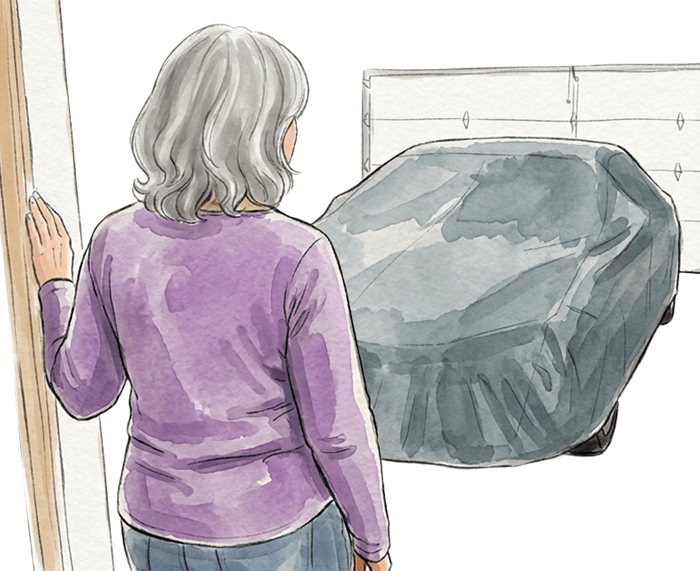
-
Travel with Vision Loss: 11 Tips from Experienced Travelers
Article · 8 minutes
-
Book Nook
Discussion
- Explore more
Members also liked
- Video · 6 minutes
- Video · 5 minutes
- Video · 4 minutes
- Video · 6 minutes
Join the Hadley Community
Hadley's resources are always available to you. Create a no-cost Hadley account to go further:
-
Pick up where you left off Everything you start is automatically saved across Hadley.
-
Personalized recommendations We'll suggest resources based on your interests.
-
Join live discussions Live and lively discussions on technology, cooking, and more, all geared toward the community of people living with vision loss.
-
Find peer support Connect with people who understand what you're going through.