
Outlook Screen Reader: Email Inbox
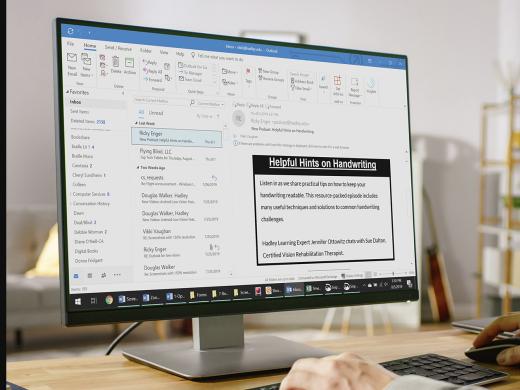
Ricky: Hello my name is Ricky Enger and today we'll get familiar with the inbox in Microsoft Outlook. We'll learn a neat little tip for Windows 10, go through a list of emails we've received and we'll change an Outlook setting to make things a lot easier for us going forward. We're using NVDA as our screen reader, but the concepts we learn will be pretty similar no matter which screen reader we're using.
All right, we've got lots a great stuff to cover so let's get right to it. We'll start by opening Microsoft Outlook. So we can either jump to our desktop with Windows + D and then press O to move to our Outlook shortcut or since we're using Windows 10 today, we can take advantage of one of its coolest features, the search box. To do that, we'll just press the Windows key by itself.
Screen Reader: Start window, search box edit, blank.
Ricky: And that's gonna pop us into an edit box where we can just start typing something. This is such a great feature because sometimes for whatever reason, we might have a program installed but we don't have a shortcut on our desktop. We still know it's there somewhere, so the search box helps us get right to it without having to hunt around. So let's just start typing the word Outlook since that's the program we're looking for.
Screen Reader: Outlook app, press right to switch preview one of two.
Ricky: And hey, there it is. Now if it isn't the first program to pop up for us, we can just use our down arrow key to explore all the results until we find Outlook. We'll go ahead and press Enter here to open Outlook since that's what's selected right now.
Screen Reader: Opening outlook. Unread from Kathryn Schwarz, subject "Should I get the large Philips Air Fryer?" Received Mon., 10/28/2019, 1:58 p.m..
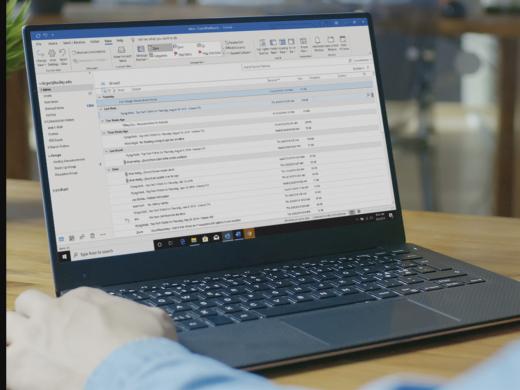
Ricky: Okay, so however we got here, either from the desktop or the search box, we've got Outlook open and we're right where we wanna be, in the inbox. When we open Outlook, the screen reader gives us a ton of information. There's kind of a lot to take in here, so let's just focus on a couple of things initially.
We start out hearing the name of our account then a few other things and then we hear information about the message we're focused on. That's the most recent message we have in our inbox. So, we can say we're starting at the beginning or the top of the list. Now if we wanna move down and see what else there is, we'll just use our down arrow key to move through the list.
Screen Reader: Unread from LearnTech, subject "RE: Talking Tablets," received Mon., 10/28/2019. Unread from Flying Blind, LLC, subject "Top Tech Tidbits" for Thursday, October 17th, 2019, volume 727.
Ricky: So each of us has different messages in our inbox right? But the information we get about those messages is going to be pretty similar. We'll hear whether the message has been read or not, we'll hear who it's from, what the subject is, when it was sent, and what size it is. There may be more information that we also get about the message like if there's an attachment of if someone sent it with a high or low priority, but we're always going to have that basic information about who sent the message, what the message is, when it was sent, and whether we've read it or not.
So, we've got some goodies in our inbox today. As we move through here, we find that we've gotten a message from Hadley about that talking tablet we asked about in a previous workshop. There are a few other messages as we move through the list with the down arrow key, but we can get back to those later. Let's move back up with our arrow key and read about this tablet.
Screen Reader: From Learn Tech, subject "RE: Talking Tablets."
Ricky: Hey, wait, outlook is telling us we already read that message, but we didn't. It's maybe not nice to call Outlook a liar, but what happened? Well, Outlook isn't deliberately trying to be mean or anything, it's just that there's this thing called the reading pane. When this pane is on, Outlook is displaying a part of the message we're focused on before we've ever opened it.
So, technically, since the message has been displayed, Outlook says we've read it. With this pane on we can just press our Tab key when we're here in the message list until we land inside the message and read it that way. So, there's nothing wrong per se with having this reading pane on, it's just that we lose that one really important bit of information, have we read this message or not? If we wanna have access to that information such that Outlook won't mark a message as read until we actually open it, we can either change some settings in the reading pane options or we can just turn this reading pane off. There are actually lots of ways we can do that, but the quickest one is just to use a set of shortcut keys. We'll press Alt + V, V for view.
Screen Reader: Ribbon tabs tab control expanded. View tab selected alt, V five of six.
Ricky: And then we'll press P and then N.
Screen Reader: Right check alt, V, P, N, R.
Ricky: That jumps us right to the settings for our reading pane and we can move up and down through our choices with the arrow keys. So, this can be displayed on the right.
Screen Reader: Right check alt, V, P, N, R.
Ricky: The bottom.
Screen Reader: Bottom alt, V, P, N, V.
Ricky: We can leave it on and check out these options for configuring how it behaves.
Screen Reader: Options, alt, V, P, N, N.
Ricky: Or, we can turn it Off.
Screen Reader: Alt V, P, N, O.
Ricky: When the screen reader says "checked" that tells us which one is currently selected. Right is the one that's checked here, so let's just move to Off.
Screen Reader: Alt, V, P, N, O.
Ricky: And press Enter to choose that.
Screen Reader: Table view table, group by.
Ricky: Now because we already moved through some of these messages with the reading pane on, they'll still be marked as read, but in the future our new messages will stay unread until we open them, yeah!
Now we can go through our inbox and start to figure out what to do with all these goodies we have in here. I'm Ricky Enger and I'm glad you could spend a little time with me today exploring the inbox in Microsoft Outlook.
-
Handouts
Email: Inbox Quick-Start Guide (PDF)
This quick-start guide helps you to navigate your inbox.
This handout lists keyboard shortcuts so you have an alternative way to do something that you'd typically do with a mouse.
Outlook: Screen Reader Series
- Video · 7 minutes
- Video · 10 minutes
- Video · 4 minutes
- Video · 6 minutes
Explore
-
Gardening and Vision Loss
Audio · 24 minutes
-
It's hard to ask for help
Resource guide
-
Anxiety and Depression: Finding a way forward
Article · 4 minutes
-
Recreation Chat
Discussion
- Explore more
Members also liked
- Video · 6 minutes
- Video · 6 minutes
- Video · 5 minutes
- Video · 4 minutes
Join the Hadley Community
Hadley's resources are always available to you. Create a no-cost Hadley account to go further:
-
Pick up where you left off Everything you start is automatically saved across Hadley.
-
Personalized recommendations We'll suggest resources based on your interests.
-
Join live discussions Live and lively discussions on technology, cooking, and more, all geared toward the community of people living with vision loss.
-
Find peer support Connect with people who understand what you're going through.