
iPhone/iPad VoiceOver: Setting Shortcuts
Douglas: Hello, my name is Douglas Walker. Today, we're gonna be taking a look at a really quick way that we have for quickly turning on and off some of our most frequently used accessibility features, and we'll do this by setting up our Accessibility Shortcut.
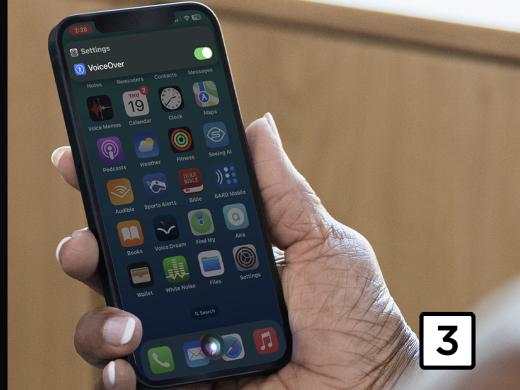
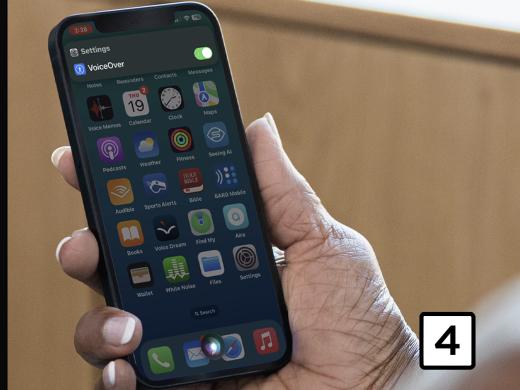
Now, once we set up our Accessibility Shortcut, we can just quickly press our side button three times, that is, if our device doesn't have a home button. Otherwise, we'll just quickly press our home button three times to toggle our favorite accessibility features on and off.
Now, we'll be setting our Accessibility Shortcut to turn on and off VoiceOver today. However, we could also set it to turn on and off a lot of our other accessibility features as well. Now, our Accessibility Shortcut setting is currently turned off, so let's take a quick look on how to set it all up.
All right, we are using our iPhone in today's workshop. However, all of this will work pretty much the same whether we're using our iPhone or our iPad.
Now, our Accessibility Shortcut setting is under our accessibility settings, and we just so happen to have our Accessibility Shortcut settings all open. And we're on our back button here in the top left corner of our screen.
Now, our Accessibility Shortcut settings are actually a list of items that we can select from to be turned on and off when we triple-press our side or home button. And of course, VoiceOver is one of the items in our list here, so how about we just right-swipe until we find VoiceOver in our list here? So we'll just right-swipe a few times.
Voiceover: Accessibility Shortcut heading.
Douglas: And there's our headings, so we'll just right swipe.
Voiceover: Configure and then triple-click the side button to toggle accessibility features on or off.
Douglas: Yeah, and that's exactly what we said earlier, so we'll just keep swiping until we find VoiceOver in our list here.
Voiceover: Triple-click the side. AssistiveTouch.
Douglas: Yeah.
Voiceover: Reorder AssistiveTouch. Background sounds.
Douglas: And we'll just keep swiping.
Voiceover: Reorder backgrounds. Classic Invert, Reorder. Color Filters, Reorder. Color, Control Nearby, Reorder. Reduce White, Reorder. Smart Invert, Reorder. Switch, Reorder. Voice Control, Reorder. VoiceOver.
Douglas: Great, and here's VoiceOver, and now, if we want to select it, you guessed it, we just one-finger double tap. So we'll go ahead and just double tap.
Voiceover: Selected, VoiceOver.
Douglas: All right, we heard VoiceOver announce that VoiceOver is now selected. Now, we could continue to right-swipe through our list here, and we would find things like Zoom and full keyboard access and tons of other things that we could add as well, which is pretty cool. However, today is all about VoiceOver. So now that we have VoiceOver selected, why don't we go ahead and give it a try? We'll just triple-press our side button here. Of course, if we have a home button, we would just triple-press that instead, and we'll be able to quickly turn on and off VoiceOver. And we'll go ahead and just press.
Voiceover: VoiceOver off.
Douglas: All right, and that was fast. VoiceOver announced that it is now off, and we can now use our device using standard touch gestures, and then, if we want to quickly turn on VoiceOver again, we'll just triple-press our side or our home button again. And since my device isn't much good to me without VoiceOver, well, we'll just triple-press our side button to turn it back on here.
Voiceover: VoiceOver on.
Douglas: Yeah, and there you go. VoiceOver, of course, is back on, and hey, we're good to go. I tell you, it's super-fantastic that we've been given a really great way for quickly turning our accessibility features on and off. Again, my name is Douglas Walker. Take care, and I'll see you next time.
-
Handouts
Setting Shortcuts Quick-Start Guide (PDF)
This quick-start guide helps you turn on and off your most frequently used accessibility features.
Listen with VoiceOver Series
- Video · 3 minutes

- Video · 12 minutes

- Video · 10 minutes
- Video · 8 minutes
Explore
-
"It's not often we encounter an angel"
Audio · 6 minutes
-
Everything feels like it’s too much. Now What?
Resource guide
-
The White Cane: From Stigma to Strength
Article · 4 minutes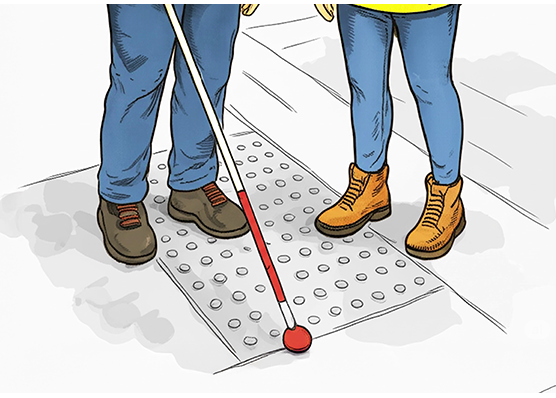
-
Resource Roundtable
Discussion
- Explore more
Members also liked
- Video · 5 minutes

Join the Hadley Community
Hadley's resources are always available to you. Create a no-cost Hadley account to go further:
-
Pick up where you left off Everything you start is automatically saved across Hadley.
-
Personalized recommendations We'll suggest resources based on your interests.
-
Join live discussions Live and lively discussions on technology, cooking, and more, all geared toward the community of people living with vision loss.
-
Find peer support Connect with people who understand what you're going through.