
Windows Low Vision: Background
Isn't it great that Windows has lots of built-in options that help us view our computer more easily? I'm Vikki Vaughan. And today we'll have a look at customizing our computers background to provide higher contrast. Let's jump right in.
We'll move to our desktop by using the keyboard shortcut, Windows key and the letter D for desktop. Next we'll open a menu. You might hear this menu called a context menu. It contains shortcuts that help us use our computer more efficiently. We can either right click anywhere on the blank part of our guests top, or we can use the keyboard shortcut shift + F10 to open this menu.
Once again, we have a couple of ways to reach our next destination. We can use the keyboard shortcut R to help us remember our shortcut, think of rainbow in the background. We can also use our mouse pointer to move down our list to select Personalize. Either of these techniques opens the settings window.
Background happens to be our first option. If your settings opens on another option, just select Background in the left pane. Our first control in the right pain is a dropdown menu. Let's select it to open it and see our options. We can choose from picture, solid color and slideshow backgrounds.
The first option picture, allows us to use either a picture provided by Windows or one of our own pictures. As much as we might like to use a picture of our family member or a pet this option often creates a busy background. This can make it difficult to see icons.
Let's try out this picture of my dog to have a look. I'll select it from the choices here below our dropdown box. Now let's have a look at our new background by moving to our desktop with Windows and the letter D. As we can see, the icons are hard to see against this busy background. Now, there are some pictures that are easier to use than others. The simpler, the better. As with all of these settings, it's best to play around with various choices to see which one works best for you.
Let's press all Alt + Tab to move back to our settings window. If you would like to see other picture choices, Windows provides lots to choose from. To our right we find a link that takes us to a Windows website where we can learn more about adding themes. There you can choose from a wide variety of backgrounds of animals, landscapes, and many other colorful options. Check out the resources below for a link to Microsoft's wallpaper website for great backgrounds.
Now, as we just saw with my picture, we can also use an image from our picture folder. By selecting the Browse button we open file Explorer where we can locate our pictures. Windows makes it easy to try out various images to see which one provides the best contrast for us. Depending on the number of images in our picture folder, the choices are almost unlimited.
Beneath our Browse button, we find a dropdown menu labeled choose a Fit. This control lets us enlarge or shrink the image according to our screens width to get a proper fit. Most people choose Fit, so the image will be enlarged or shrunk to fit the screen.
Let's return to our dropdown menu and look at our next choice. By selecting Solid color, our options change to a color palette where we choose our desired background. Many of us select a darker color, which provides greater contrast and makes icons easier to see. My personal favorite is black, but you might choose a different shade. Black is not the only dark choice that provides high contrast. Navy, hunter green, burgundy and deep purple are other high contrast colors.
Let's have a look at the difference when choosing a black background. We've seen the background using my picture. Now, when I select black from the color choices, then press Windows key and the letter D for desktop, we see that the icons are much easier to see.
Let's return to our background setting with Alt + Tab. It's nice to know that we aren't restricted by the number of colors provided on this page. Windows provides an unlimited number of colors from which to choose.
By selecting the Custom Color button below our palette, we open a color chart. Here, we can try a variety of colors to see what works best for us. We use our mouse pointer to click on a color. We can change the shade by clicking on the slider bar and dragging it to the left or right. To dark in the shade we click and drag it to the left. To make the color a lighter shade we click and drag it to the right. Once we selected our exit color, we select the Done button to close Our Custom palette.
It's best to avoid bright or neon colors as many folks find they tire the eyes more quickly. We also want to avoid background colors that are similar to our icon colors. When the background color and icons are in the same family, the icons fade into the background. No matter what color you choose, you'll wanna make sure that it's different from any icons you might be using.
Selecting a background is one of the many ways that we can customize our computer to meet our visual needs. Today, we examined various background settings to increase contrast. I'm Vicki Vaughan, and I thank you for joining me.
-
Handouts
Step-by-step directions for changing the Windows desktop background so things are easier to see.
Help for choosing the right computer hardware to use your computer more effectively.
Lock Screen and Log-In Screen (PDF)
Step-by-step directions for customizing your Lock and Log-In screens
Identifying the Operating System (PDF)
Check which edition and version of Windows your device is running
Help and Troubleshooting (PDF)
Step-by-step directions for accessing help options that are built into your operating system or application
Creating a Shortcut to the Desktop (PDF)
Step-by-step directions for creating desktop shortcuts to the apps you use most often.
Shortcuts and Tips to Make Your Screen Easier to See (PDF)
Step-by-step directions for using Windows shortcuts to make it easier to see what's on your screen.
Step-by-step directions for using text-to-speech options in Microsoft apps.
Computer Monitor Aspect Ratio (PDF)
Choosing the appropriate monitor size.
-
Websites
Link to various Windows Wallpaper (Backgrounds )
Link to various wallpaper (background) available through Bing
Shortcuts and Tips: What are the F1 through F12 keys?
Describes the function of each function key on a keyboard.
Tech support page for HumanWare assistive technology products
Accessibility features on your iPhone
Google Disability Support Team
How to contact the Google Disability Support team
Microsoft Disability Answer Desk
Microsoft Accessibility Resources
Technical support contact page
Resources for the meaningful education and training webinars you need to get the most out of APH products and services
Employment information resource offered by the American Printing House for the Blind for job seekers who are blind or visually impaired
Searchable Help Center page
Customizing Windows for Low Vision Series
- Video · 4 minutes
- Video · 5 minutes
- Video · 3 minutes
- Video · 4 minutes
Explore
-
Shopping with Vision Loss
Audio · 26 minutes
-
I can’t drive anymore. Now What?
Resource guide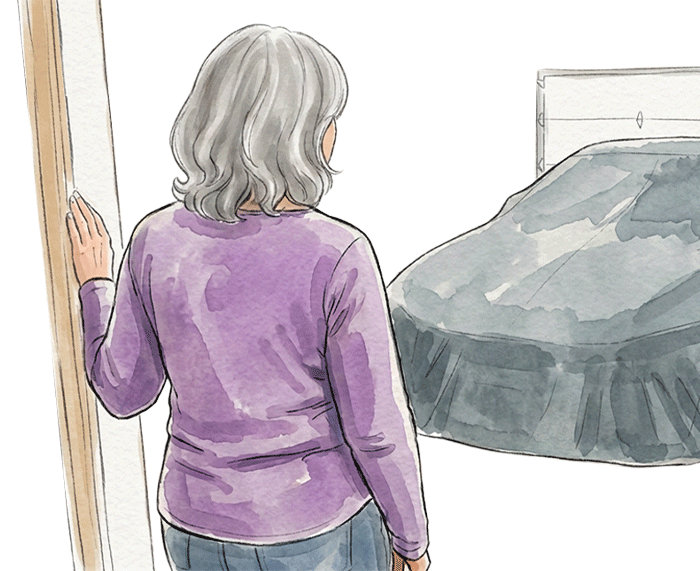
-
Organizing Your Kitchen with Vision Loss: Taming the Freezer
Article · 4 minutes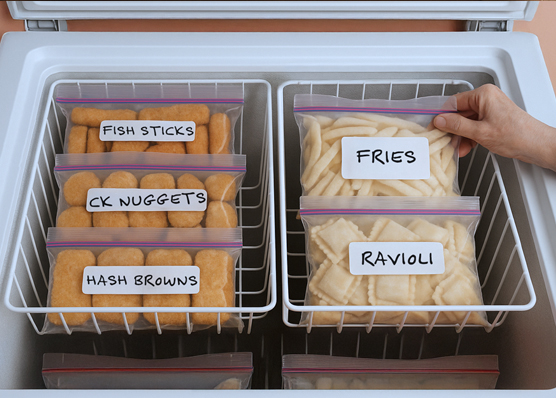
-
Writers' Circle
Discussion
- Explore more
Members also liked
- Video · 12 minutes
- Video · 9 minutes

- Video · 6 minutes
- Video · 6 minutes
Join the Hadley Community
Hadley's resources are always available to you. Create a no-cost Hadley account to go further:
-
Pick up where you left off Everything you start is automatically saved across Hadley.
-
Personalized recommendations We'll suggest resources based on your interests.
-
Join live discussions Live and lively discussions on technology, cooking, and more, all geared toward the community of people living with vision loss.
-
Find peer support Connect with people who understand what you're going through.