
Outlook Screen Reader: Email Move and Copy
Ricky: Hello, my name is Ricky Enger, and today we'll learn about moving and copying messages between folders in Microsoft Outlook. We're using NVDA as our screen reader, but the concepts we learn here will be pretty similar no matter which screen reader we're using. We've talked about so many great features of Outlook in this series, but there's one feature that doesn't get nearly enough attention, paper cut protection.
Now, why doesn't anyone ever talk about this? It's true though. With Outlook, we can organize things into folders, move things around, make copies of things, all without ever having to worry about those annoying paper cuts we'd get when moving papers into physical folders. So, how do we begin organizing our messages so that everything we wanna keep isn't just sitting in the inbox? It's pretty painless, actually, and not just because we won't get paper cuts. First, we'll need a folder to place messages into, and we covered that in our Working with Folders workshop in this series. So, we've got a recipe folder under our inbox, and here, in the inbox, we've got an awesome recipe for banana bread.
Screen Reader: From Vikki Vaughan, subject, banana bread recipe.
Ricky: Let's move this recipe where it belongs, in the recipes folder. To do that, we'll focus on our recipe here in the inbox, and we'll use a shortcut key to start the process. We'll press control plus shift plus V as in Victor.
Screen Reader: Move items dialog. Move the selected items to tree view, inbox collapsed, one of one, level one.
Ricky: When we press that, our screen reader asks us where we're moving our message. Now the interesting thing is that each of us will have a unique list of folders, and our focus may be placed on a different folder, depending on what our setup is. It's all good though because we know where we wanna move this banana bread recipe. We wanna place it in our recipes folder.
So, there are two ways we can do that. We can move through this whole list of folders with our up and down arrow keys, and as we mentioned in our Working with Folders workshop in this series, some of our folders may be collapsed. We'll press our right arrow to expand a collapsed folder to get to any subfolders under there.
Screen Reader: Expanded, zero items.
Ricky: The folder we want might be above or below where we are so we might have to do some exploring. That, or we can just press the first letter of our folder until we land on the one we want. So, we'll press R.
Screen Reader: Level one, RSS feeds, one of one.
Ricky: Nope, that's not it, so we'll press R again.
Screen Reader: Level two, recipes, one of one.
Ricky: And there it is. That takes a lot less time than moving through everything with our arrow keys. So, now that we're on the right folder, all we have to do is press enter,
Screen Reader: Inbox [email protected].
Ricky: and we're back in the inbox with one little change. Our message containing the recipe for banana bread isn't here. It's safely tucked away in the recipes folder where it belongs.
Now, sometimes we might wanna make sure we have a message saved in a particular folder, but we also want to keep it in our inbox so we can be reminded to reply to it or send it to someone else. In that case, we don't wanna move the message, we want to make a copy of it so it stays right where it is, but it also exists in another folder. How do we do that? Let's focus on this message with a recipe for brownies.
Screen Reader: From Kathryn Schwartz. Subject, brownies recipe.
Ricky: We'll reply and thank the person who sent this later, but first, let's copy it to our recipes folder with a lovely little shortcut key. We used control plus shift plus V to move the message. This time, we'll use control plus shift plus Y, as in Yankee, to copy it.
Screen Reader: Copy items dialog. Copy the selected items to the folder. Tree view, level two recipes, one of one.
Ricky: Here we've got a very familiar dialog. It's just like the one that popped up for moving our message, only this time, we're copying. We can move through our list of folders with our arrow keys, or just press the letter R until we find our recipes folder.
Screen Reader: Level one, RSS feeds, one of one. Level two, recipes, one of one.
Ricky: And there it is. We'll press enter,
Screen Reader: Inbox [email protected].
Ricky: and we're right back in our inbox. We're focused on our brownies recipe. It didn't disappear, we just made a copy of it over in our recipes folder. If we wanna double-check that we have messages in that folder, we'll use our control plus Y shortcut that we learned in our Working with Folders workshop.
Screen Reader: Go to folder dialogue. Folders, tree view.
Ricky: And we'll find our recipes folder,
Screen Reader: Level two, recipes, one of one.
Ricky: and press enter to open it.
Screen Reader: Recipes, [email protected]. Table view table. Grouped by, expanded, date. Today, grouping expanded, row one column one through 12. Level one from Kathryn Schwartz. Subject, brownies recipe.
Ricky: And here we are in our recipes folder, and yay, it's not empty anymore. I'm Ricky Enger, and I'm glad you could spend a little time with me today, learning to move and copy messages in Microsoft Outlook.
-
Handouts
Email: Move and Copy Quick-Start Guide (PDF)
This quick-start guide helps you to move and copy emails.
This handout lists keyboard shortcuts so you have an alternative way to do something that you'd typically do with a mouse.
Outlook: Screen Reader Series
- Video · 6 minutes
- Video · 10 minutes
- Video · 7 minutes
- Video · 7 minutes
Explore
-
Foundation Fighting Blindness: Where Research Meets with Support
Audio · 22 minutes
-
It's hard to ask for help
Resource guide
-
Holiday Gift Ideas for Vision Loss
Article · 4 minutes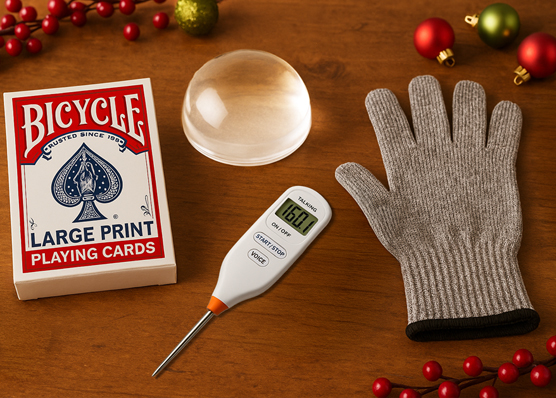
-
What's Cooking?
Discussion
- Explore more
Members also liked
- Video · 6 minutes
- Video · 5 minutes
- Video · 4 minutes
- Video · 6 minutes
Join the Hadley Community
Hadley's resources are always available to you. Create a no-cost Hadley account to go further:
-
Pick up where you left off Everything you start is automatically saved across Hadley.
-
Personalized recommendations We'll suggest resources based on your interests.
-
Join live discussions Live and lively discussions on technology, cooking, and more, all geared toward the community of people living with vision loss.
-
Find peer support Connect with people who understand what you're going through.