
Outlook Screen Reader: Email Forward
Ricky: Hello, my name is Ricky Enger and today we'll discover how to forward an email message in Microsoft Outlook. We're using NVDA as our screen reader but the concepts we learn will be pretty similar no matter which screen reader we're using. Every day is an adventure in the Outlook inbox. We can receive just about anything and sometimes we even get things that are worth sharing with other people. One of these chain letters that says we'll get tons of money if we just send the email to eight other people?
Yeah, that's not a great example of something we wanna share. But this recipe for banana bread we received in our replying to all workshop in this series, now that's worth passing along. So, how do we share this with someone else? Outlook makes it pretty easy to do with a feature called "forwarding". That's basically sending this message on to someone else without having to copy it or retype it or anything time consuming like that. So, how do we do that? Well, we open our message with this delicious recipe for banana bread.
Screen Reader: Banana bread recipe message, html, dialogue, message document, multi-line.
Ricky: And we'll just press control plus F for forward.
Screen Reader: Forward banana bread recipe message, html, dialogue, to edit, blank.
Ricky: Check it out. When we do that, we hear the title of the original message but with an FW in front of it. Now, the screen reader voice we're using actually pronounces that FW as forward because it knows what this abbreviation means, but if we actually went through this character by character it says FW. That FW just tells the person receiving the message that it has been forwarded from somewhere else.
Sometimes we'll get messages that have been forwarded more than once. So we might have a subject line like FW, FW, FWD. Yeah, we can see both FW and FWD and they actually mean the same thing. Sometimes we might get a subject line with more FWs and FWDs than any other words in the subject line so we'll know that message has really made the rounds. So anyway, when we press our control plus F key to forward, Outlook puts this in the "To" field where we can type the email address where we want to send this recipe.
Screen Reader: Douglas Walker. [email protected].
Ricky: Now, when we've done that, everything else is just like we've talked about before. If we tab once we'll be in the "Cc" field.
Screen Reader: Cc edit, blank.
Ricky: And if we tab again we'll be in the subject field with that FW inside it.
Screen Reader: Subject heading out plus you. Forward banana bread recipe.
Ricky: One more tab puts us at the top of the message where we can say something in addition to the message we're forwarding if we want.
Screen Reader: Message edit multi line, blank.
Ricky: Now, if we go ahead and press "down arrow", we'll see the message that we're forwarding. It first shows who it's from.
Screen Reader: From: Vikki Vaughan, less [email protected], grader.
Ricky: Then we'll see the date.
Screen Reader: Sent Monday March 16th 2020, 10:10a.m.
Ricky: And the people this was sent to.
Screen Reader: To Ricky Enger, less [email protected], grader.
Ricky: Then our subject.
Screen Reader: Subject: banana bread recipe.
Ricky: And then our wonderful recipe for banana bread. If we press control plus home to move back up to the top.
Screen Reader: Blank.
Ricky: We can type a message just from us that will be seen before the recipe.
Screen Reader: I know you prefer chocolate cake, but perhaps this recipe will change your mind.
Ricky: We can sign the message if we want.
Screen Reader: Ricky Enger.
Ricky: Or we can just send it. In fact, we can press alt plus S to send at any point here once we enter the email address where it's going. We don't even have to tab all the way to the message body to add something if we don't want to. So in this case we did add a little to our message and we're ready to press alt plus S to send it.
Screen Reader: Banana bread recipe message, html.
Ricky: And we're done. We've forwarded this recipe. I'm Ricky Enger and I'm glad you could spend a little time with me today learning to forward a message in Microsoft Outlook.
-
Handouts
Email: Forward Quick-Start Guide (PDF)
This quick-start guide helps you to forward emails.
This handout lists keyboard shortcuts so you have an alternative way to do something that you'd typically do with a mouse.
Outlook: Screen Reader Series
- Video · 6 minutes
- Video · 10 minutes
- Video · 7 minutes
- Video · 7 minutes
Explore
-
Managing Holiday Cards and Gifts with Vision Loss
Audio · 30 minutes
-
It's hard to ask for help
Resource guide
-
5 Free Apps to Help After Vision Loss
Article · 5 minutes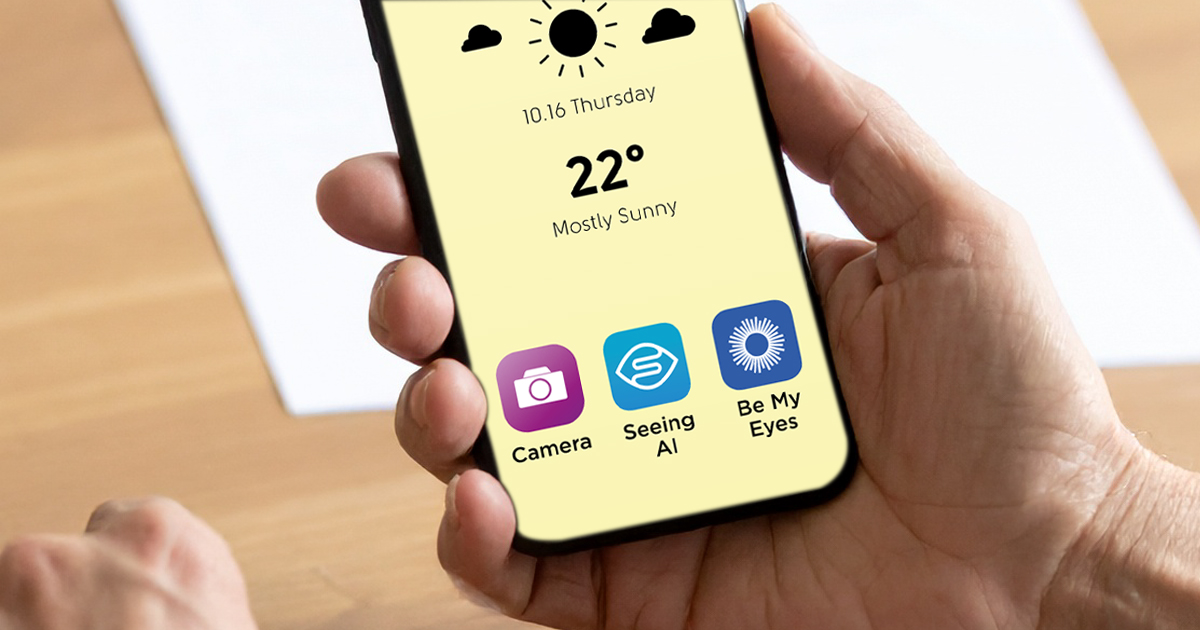
-
What's Cooking?
Discussion
- Explore more
Members also liked
- Video · 6 minutes
- Video · 5 minutes
- Video · 4 minutes
- Video · 6 minutes
Join the Hadley Community
Hadley's resources are always available to you. Create a no-cost Hadley account to go further:
-
Pick up where you left off Everything you start is automatically saved across Hadley.
-
Personalized recommendations We'll suggest resources based on your interests.
-
Join live discussions Live and lively discussions on technology, cooking, and more, all geared toward the community of people living with vision loss.
-
Find peer support Connect with people who understand what you're going through.