
Outlook Screen Reader: Email Searching
Ricky: Hello, my name is Ricky Enger. And today we'll learn about searching the inbox in Microsoft Outlook. We're using NVDA as our screen reader but the concepts we learn will be pretty similar no matter which screen reader we're using. Where did it go? It has to be here somewhere. Where in the world is that thing? Do those phrases sound familiar? Yeah, we misplace things from time time. And it really is frustrating.
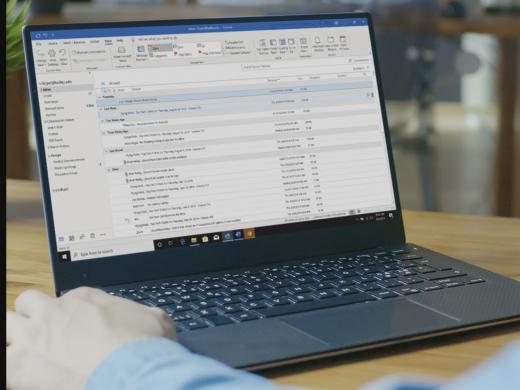
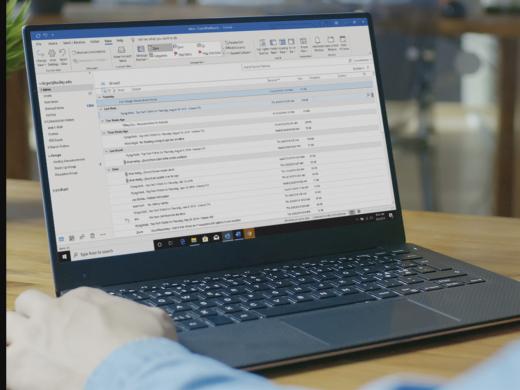
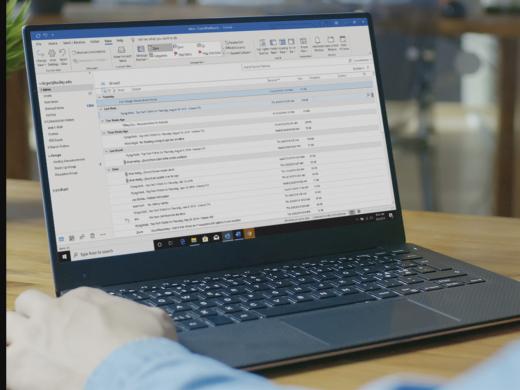
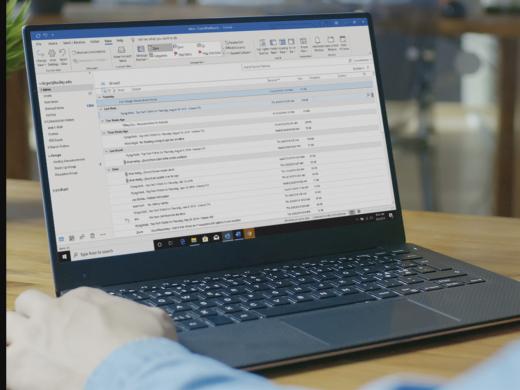
For some things, we can use a luggage locator or a similar device where we press a button and listen for the beeping. But what about for email? How do we find a message we're looking for without having to move through everything in our list? Well, it's not exactly like a luggage locator. But Outlook gives us a really easy way to quickly find what we're looking for. Let's check it out. So we're here in our inbox. And we've got lots of messages in here that we've been meaning to organize into other folders. Remember that recipe's folder we created in our Working with Folders workshop in this series? We have a message or two, in our inbox, that we should move into that folder. So let's find them. We'll start by pressing Control + E, as in echo.
Screen Reader: Edit, blank.
Ricky: Well, edit, blank, doesn't really tell us much except that we're in an edit box with no information entered in it. This edit box just happens to be where we'll type the term we're searching for. Now, this can be anything including the name of the person who sent us the message. A word that shows up in the subject of the mail. Or even something that's inside the message itself. That's pretty powerful. Okay, so let's type in recipe in our search box. And now, we'll press Shift + Tab.
Screen Reader: Searching, table view table. Group by expanded date. Top results grouping expanded row one column, one through 12.
Ricky: Hey, this is just like our inbox. Did anything actually happen? Well, let's move through these messages with our arrow keys.
Screen Reader: From Kathryn Schwartz, subject, brownies recipe. From Vikki Vaughan, subject, banana bread recipe. From Kathryn Schwarz, subject, cherry cheesecake recipe.
Ricky: And we notice that each of these messages has recipe in the subject line. Or if not the subject line, then somewhere in the body of the message. So Outlook does just as we ask. We search for a keyword and Outlook shows us only those messages with the keyword that we type. Wow, that's so much faster than going through our messages one by one just to find something. So, there are ways that we can make this search even more powerful. And we can find these features just by tabbing through this area. We'll first find our edit box with our search term.
Screen Reader: Recipe, edit, recipe.
Ricky: And then a close search button.
Screen Reader: Close search button, close search.
Ricky: Then we'll tab again.
ScreenReader: Current folder selected, search scope selected, change search scope.
Ricky: Now if we open this with our spacebar, we can use our arrow keys to move through options, including the ability to search all items instead of just this current folder.
Screen Reader: Current folder. Sub-folders. Current mailbox. All Outlook items.
Ricky: If we want to select an option here, we can just go ahead and press enter on it. Otherwise, we can press escape to close this list of options. Either way, we'll be placed right back in our search field with the keyword we're searching for.
Now, there are a few more items in this area if we use our tab key to move through here, such as the ability to sort the messages, show only unread messages and a few other things. But, we don't need those right now. In fact, we wanna just get back to our full list of messages and clear this search. We're in our search field right now and guess which button comes next when we press tab?
Screen Reader: Close search button, close search.
Ricky: We'll go ahead and use our spacebar to activate this button.
Screen Reader: Submit search. Table view table. Group by expanded.
Ricky: And hey, we're right back at our list of messages. And the next time we start muttering about where in the world we put that email message we need? We can just press Control + E and search for it. I'm Ricky Enger. And I'm glad you could spend a little time with me today learning how to search for messages in Microsoft Outlook.
-
Handouts
Email: Searching Quick-Start Guide (PDF)
This quick-start guide helps you to search for emails.
This handout lists keyboard shortcuts so you have an alternative way to do something that you'd typically do with a mouse.
Outlook: Screen Reader Series
- Video · 7 minutes
- Video · 10 minutes
- Video · 7 minutes
- Video · 7 minutes
Explore
-
"You're not defeated if you ask for help"
Audio · 5 minutes
-
I can’t drive anymore
Resource guide
-
"Phantom Vision": Understanding Charles Bonnet Syndrome
Article · 5 minutes
-
Writers' Circle
Discussion
- Explore more
Members also liked
- Video · 6 minutes
- Video · 5 minutes
- Video · 4 minutes
- Video · 6 minutes
Join the Hadley Community
Hadley's resources are always available to you. Create a no-cost Hadley account to go further:
-
Pick up where you left off Everything you start is automatically saved across Hadley.
-
Personalized recommendations We'll suggest resources based on your interests.
-
Join live discussions Live and lively discussions on technology, cooking, and more, all geared toward the community of people living with vision loss.
-
Find peer support Connect with people who understand what you're going through.