
Outlook Screen Reader: Email Send Attachment
Ricky: Hello, my name is Ricky Enger. And today we'll learn about sending an attachment in Microsoft outlook. We're using NVDA as our screen reader but the concepts we learn here will be pretty similar no matter which screen reader we're using. Giving gifts is one of the most awesome things ever, isn't it?
We spend time searching for that perfect gift to brighten someone's day and then we try to wrap it and that's a disaster and then we realize we don't even have a big enough gift bag and wow, that went downhill fast, didn't it? Well there is a solution to this. We can't use it for every occasion but sometimes the perfect gift for someone might be a document with a poem we've written. Or a sound file of cute puppy noises. The possibilities are endless really. But how do we get that file from our computer to someone else's. We can do that by sending an attachment in Microsoft Outlook. So we've got a message open and we've written a quick little note here. Now it's time to find our file and attach it to the message. First we'll press alt + N and that brings us to the insert section of our ribbon.
Screen Reader: Ribbon tabs, tab control expanded. Insert tab selected alt N three of seven.
Ricky: A ribbon is basically a collection of options and features available to us in Outlook and other programs and it appears visually at the top of our screen. Okay so we're on the insert option and there are lots of things that Outlook let's us insert. If we wanna explore these options we can press our down arrow key and then use our right arrow key to move through all the choices
Outlook gives us. We don't need to do that right now though since we know that we want to attach a file. So now that we've pressed alt + N we'll press A for attach and then F for file.
Screen Reader: Attach file. List recent items grouping. TL music.txt not selected C. Users video prod documents one of 12.
Ricky: Now we're just where we wanna be in the files dialog. We land on a list of our recently used files since Outlook assumes we'd like to attach something that we just opened or downloaded. That's pretty convenient, right? So we'll just go ahead and move through this list with our down arrow key and find the file we want.
Screen Reader: Puppy sounds.MP3 not selected C. Users video prod documents three of 12.
Ricky: Yup, that's the one so we'll press enter here to select it.
Screen Reader: Dialogue, message edit, multiline.
Ricky: And the file is attached. Outlook puts us right back in the body of our message in case we wanna add something to what we've written. The screen reader doesn't really confirm that we've attached our file so how can we be sure? Well, we learned in our saving attachments workshop in this series that we can press shift + tab in a message to find files that are attached to it. That same concept works when we're sending an attachment so let's press shift + tab and see what we have.
Screen Reader: New document window, puppy sounds.mp3. 384kb, one of one attachments, button selected, use alt plus down arrow to open the options menu.
Ricky: And sure enough there's our attachment. This is great but what happens if the file we wanna send isn't in our recent files list? Well, let's press our alt + N shortcut again.
Screen Reader: Ribbon tabs, tab control, expanded. Insert tab selected alt N three of seven.
Ricky: And then A for attach and then F for file.
Screen Reader: Attach file. List recent items grouping. TL music.txt not selected C. Users video prod documents one of 12.
Ricky: We land in our recent files list just like before but this time let's press our up arrow key instead of moving down through the list of recent files.
Screen Reader: Browse this PC. Alt N AFV.
Ricky: And that's just what we wanna do, so we'll press enter here.
Screen Reader: Insert file dialogue, file name. Treeview, level one, this PC not selected, expanded one of one. Level two documents collapsed, one of one. File name combo box collapsed. Edit alt plus N blank.
Ricky: Our screen reader says a number of things and at the end of it all we hear that we're in an edit box where we can type our file name. Now we might not remember exactly what the file is called so we'll go ahead and look for it. Let's press shift + tab to move backward through the dialogue.
Screen Reader: Items view list. Name split button collapsed sorted ascending.
Ricky: And we'll press shift + tab again.
Screen Reader: Audacity not selected, one of 15.
Ricky: We'll all have different files of course but in this case we've got a list of files from the documents folder since that's the last place on this computer that we used to attach a file. So if we last attach something from our downloads folder instead that's where we'll be next time. If we wanna know for sure which folder we're in we can either continue to shift + tab backward through this dialogue or we can press alt + D to move to that specific area in the dialogue and it will tell us which folder we're in.
Screen Reader: Address combo box collapsed. Edit D, selected documents.
Ricky: So back in our list view showing us what's in our documents folder we'll press our backspace key which moves us out of our documents folder and into a list of folders on our computer.
Screen Reader: Treeview, level one this PC expanded, one of one, items view list, folders grouping expanded, documents row two column one, three of nine.
Ricky: We can use our left and right arrow keys to move through this list. Let's go ahead and move over to music.
Screen Reader: Downloads, row two column two, four of nine, music row three column one, five of nine.
Ricky: And press enter. Great, now we're in our music folder and we can use our arrow keys to explore what's in here.
Screen Reader: 2001.mp3 not selected, one of two.
Ricky: Let's find Hadley learning braille is fun to do.MP3.
Screen Reader: Hadley learning braille is fun to do.MP3, two of two.
Ricky: Perfect, we'll press enter here.
Screen Reader: A little fun message HTML dialogue.
Ricky: And that neat little song is now attached to our message. Puppy sounds and a song about braille all in one message? Yup, this is an awesome gift for sure. I'm Ricky Enger and I'm glad you could spend a little time with me today learning how to attach files in Microsoft Outlook.
-
Handouts
Email: Send Attachment Quick-Start Guide (PDF)
This quick-start guide helps you to send attachments to people.
This handout lists keyboard shortcuts so you have an alternative way to do something that you'd typically do with a mouse.
Outlook: Screen Reader Series
- Video · 6 minutes
- Video · 10 minutes
- Video · 7 minutes
- Video · 7 minutes
Explore
-
Low Vision Specialists
Audio · 24 minutes
-
A family member has vision loss
Resource guide
-
Organizing Your Kitchen with Vision Loss: What’s in the Pantry?
Article · 4 minutes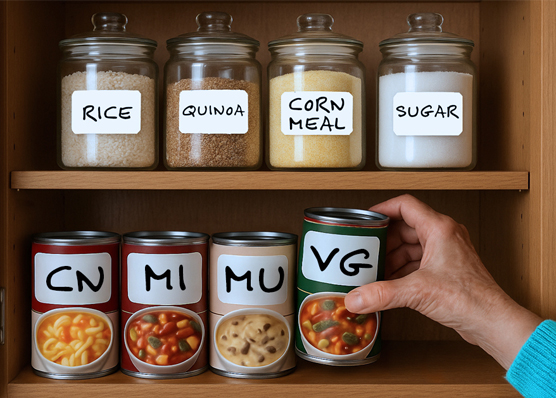
-
Resource Roundtable
Discussion
- Explore more
Members also liked
- Video · 6 minutes
- Video · 5 minutes
- Video · 4 minutes
- Video · 6 minutes
Join the Hadley Community
Hadley's resources are always available to you. Create a no-cost Hadley account to go further:
-
Pick up where you left off Everything you start is automatically saved across Hadley.
-
Personalized recommendations We'll suggest resources based on your interests.
-
Join live discussions Live and lively discussions on technology, cooking, and more, all geared toward the community of people living with vision loss.
-
Find peer support Connect with people who understand what you're going through.